Pages

Friday, 13 September 2013

MATLAB linking figure for simultaneous zooming and panning

Sometime back I have written a Matlab GUI, which allows you select variables from your work space and plot them in linked figures so that when you pan and zoom, other figures zoom automatically. Lately I have received a lot of request to share that GUI with other but unfortunately I am unable to do so as I developed it for some research works and I am not allowed to distribute it. But, I am going to share you a function which does that linking.

To use that function, download it from here. There is a test.m for testing purpose as well.

%first image
Im1 = imread('cameraman.tif');
% show first figure
imshow(Im1)
% threshold image
Im2 = Im1>50;
%show second image in another figure
figure,
imshow(Im2);
% then call linkaxes_shailesh ()
% remember that matriz size must be same</code>

Put it in a safe place in a folder, set path in Matlab to that folder so that the function is available in every Matlab session ( file> set path). Open two or more figure you want to link in but bear in mind that the variables used in the figures must of same size i.e. it should have same number of rows and columns. After that, call that function by typing linkaxes_shailesh in your command line or you can even call it within one of your m file or function files by linkaxes_shailesh ()  and viola, your figures will be linked.  Its simple as that, don’t believe? Try out yourself. Someone said rightly ‘ Seeing is believing’. I hope you find it useful.

<iframe width="560" height="315" src="//www.youtube.com/embed/QhqnGdk2yQU?list=UUHQMpdmbYQPJxqsnKuz9DUw" frameborder="0" allowfullscreen></iframe>


Friday, 30 August 2013

Neighborhood analysis in QGIS.


QGIS is an open source software which anyone can download for free. The community is growing each day and it is completely capable of doing common basic GIS tasks as well as more advance stuff. In this tutorial, I will show you how to do some neighbourhood analysis in QGIS with the help of sextante graphical modeler. If you guys are more ArcGIS person then you might be familiar with ArcGIS modeler. QGIS provides similar graphical interface as ArcGIS through which all the available algorithms in QGIS are accessible. On top of that you can combine algorithms from different other providers such as GDAL, Grass, OrfeoToolbox, R and SagaGIS. So it can be really powerful tool to automate your daily GIS task. Go check it out. Scour help file of QGIS, you will find plenty of readings.

Different programs that are available with QGIS

So the task is: There is a polygon shape file of my country Nepal which is shown in green. Each polygon represents a district. There is a point shp file which represent point of interest (assume it to be major infrastructures such as big hospitals or airports or universities etc). Each point of interest is represented by unique ID. Now the task is to assign each district to closest point of interest based on how far the district is from point of interest
Input shpfiles: 
The graphical model in QGIS.


The model is basically doing following main task.
  • ·         Convert shp file districts to its centroid
  • ·         Calculate nearest point of interest from each district centroid.

After creating the model one could just hit the run button and you are good to go. The model can be saved and used it for later purpose. As you can see in the modeller, the first algorithm is coming from SAGA GIS whereas second algorithms is coming from core QGIS. This is also a good illustration to show how algorithms can be combined from different source.

After running the model, you will get a point file. Let’s examine its attribute table. As you can see, each district is associated with @HubName which in our case is point of interest. It also has distance information. I forgot to converts projection EPSG: 4632 to a projected one so the distance is in terms of latitude and longitude. If you want distance in m or km then use a projected EPSG and you will be fine.


Now we will join this information to the original district shp file based on the column @Name. To do that do the following:

Right click the polygon shp file and click properties. Click join tab and following figure pops up. Click green + button to define a join as shown in next figure. The join column is @Name which is common is both polygon shp files as well point shp files that we calculated from our graphical modeler

Join attribute interface
.
Defining join layer and columns

After the join, the attribute of districts polygon has additional information. Now it’s the matter of applying colour symbology to differentiate which districts are closer to which one of the point of interest based on fourth column.

Attribute table after join

The final result is :

I have not shown each and every step in this tutorial. My main purpose is to show how you can use powerful QGIS and sextante modeler to perform complex GIS task such as neighborhood analysis without using ArcGIS which costs a lot and stimulate you to try QGIS. If any questions, just ask and I will reply. Of course, if I am not busy with my shits J


Monday, 10 June 2013

Maximum reflectance in a spectra of Multispectral or Hyperspectral image in MATLAB

This is a very short post, something related to processing of remote sensing images. The image can be either multi-spectral or hyper-spectral images. One of my colleagues asked me this simple help in MATLAB  He was trying that in ENVI with band-math and IDL, with no avail.

I wanted to produce 2 images from my hyper-spectral image: 1) showing the maximum reflectance value across the bands and 2) the band number where the maximum came from.

First step is to read the image in MATLAB, of course :). That's no-brainer. For that you have to use multibandread function. I have a written post about it earlier. Search in the site. Now you have your image read in the MATLAB.

Here is the code, that i have written to perform what my friend asked.Hope this is useful for someone else.

%find the number of rows and columns
[rows,cols,bands]= size(imt1);
%reshape it 
imt1= reshape(imt1,[],4)';
%find max_value and band which has maximum value
[max_value,idx]= max(imt1,[],1);
%reconstruct the image
band_image= reshape(idx,rows,cols);
max_image= reshape(max_value,rows,cols);

Friday, 7 June 2013

eConition Tutorial: Customized algorithm for performing majority vote in eCognition

Today, I present you a customized rule set which lets you to assign super-object by evaluating all of its sub-objects based on which classification makes up the largest proportion of the area. This is one of the wishlist in eCognition Ideas and was also frequently asked in the ecognition community.

A majority statistic customized algorithm lets you assign  super- object to the class with the majority value of the pixels within each object. This would be useful for converting existing pixel-based classifications into an object-based format where additional object-based edits can be made.

The only parameter in this customized algorithm is a level variable. This is a level which consists of super-object. The customized algorithm will look one level below the level variable and perform all the necessary calculation.

Sub-objects level with classification


Super-objects level with no classification

Super-object level with classification from customized algorithm
The customized algorithm does assignment of super-object with following steps.

1) store all the classes in an array ( array_class)
3) loop through your objects in super objects
2) loop through your class arrays
4) store rel. area of (1) in an array for the class ( array_occur)
5) find maximum in the array_occur
6) assign super-object as maximum occurrence class in array  array_occur.

All of these steps are performed behind the scene in customized algorithm, so the user does not need to worry about how to perform these steps.

I have uploaded a zip file where you will find a project which shows the usage of the customized algorithm. There is a  customized rule-set as well. Load the customized rule set in your project and after that you will find a algorithm MajorityVote in the available algorithm list.

The algorithm was developed with eCogntion 8.8 and  will not work below that version.


eCognition tutorial: Customized algorithm for performing majority vote in eCognition

Today, I present you a customized rule set which lets you to assign super-object by evaluating all of its sub-objects based on which classification makes up the largest proportion of the area. This is one of the wishlist in eCognition Ideas and was also frequently asked in the ecognition community.

A majority statistic customized algorithm lets you assign  super- object to the class with the majority value of the pixels within each object. This would be useful for converting existing pixel-based classifications into an object-based format where additional object-based edits can be made.

The only parameter in this customized algorithm is a level variable. This is a level which consists of super-object. The customized algorithm will look one level below the level variable and perform all the necessary calculation.


Sub-objects level with classification

Super-objects level with no classification

Super-object level with classification from customized algorithm

The customized algorithm does assignment of super-object with following steps.

1) store all the classes in an array ( array_class)
3) loop through your objects in super objects
2) loop through your class arrays
4) store rel. area of (1) in an array for the class ( array_occur)
5) find maximum in the array_occur
6) assign super-object as maximum occurrence class in array  array_occur.

All of these steps are performed behind the scene in customized algorithm, so the user does not need to worry about how to perform this steps.

I have uploaded a zip file where you will find a project which shows the usage of the customized algorithm. There is a  customized rule-set as well. Load the customized rule set in your project and after that you will find a algorithm MajorityVote in the available algorithm list.

The algorithm was developed with eCogntion 8.8 and  will not work below that version.


Wednesday, 15 May 2013

Setting up object based change detection rule set in Ecognition

I have been very busy lately, so apologies. But on the flip side I am writing something that may be useful for many of you. eCognition is pioneer software for doing object based image classification.  Let’s say, you have two images classified, time T1 and time T2 and you want to identify change and no change areas.

Time T1

Time T2

Change/ No Change map to be produced
You would proceed like this:
1)      Copy Map T1 to Map Change detection in lvl T1
2)      Copy lvl T1 above and name as lvl T2
3)      Synchronize Maps T2 with lvl T2 in Map Change Detection.
4)      At lvl T2Ł convert to sub object
5)       Copy lvl T2 in Map Change Detection.above and name as lvl change
6)      Delete classification in lvl change

By doing these steps, you have a level, lvl change where each object is of same size as in the sub objects  in lvl T1 and lvl T2. Now you want to classify objects in lvl change as change and no change. How would you proceed?

Majority of people proceed like this:
1)      Set up a class No change, and look for change in class for each objects  using ‘Existence of sub object”’ in sub objects in lvl T1 and lvl T2 (c.f. figure).  Figure shows set up of rule set for one class only.
Class description when one class only 
2)       Generally classification has many numbers of classes. When adding one more class in the rule, the class description of No change class becomes a bit complex.
Class description when two classes only 
3)      Now imagine you have 20 different classes. Of course you can perform the process by adapting the rule description for No change for another 18 class. But it’s a tedious process and takes time. Further, the same class description cannot be used for another set of classification maps which may have different class names.So what would you do in this case?

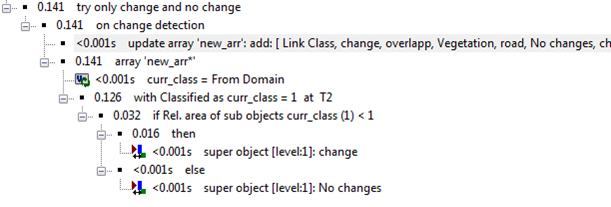
4)      Wise, things to do is to take benefit of array handlings capabilities of eCognition, concept of sub-object, super-object and Parent Process Object (PPO).I am showing you a solution that is short and does not need any set up of class description in change and No change class, easily adaptable to other projects.


6)      I leave up to you to try to understand the rule set shown above. If you don’t understand, give me a shout, I will try to explain.

eCognition tutorial: Setting up object based change detection rule set in Ecognition

I have been very busy lately, so apologies. But on the flip side I am writing something that may be useful for many of you. eCognition is pioneer software for doing object based image classification.  Let’s say, you have two images classified, time T1 and time T2 and you want to identify change and no change areas.

Time T1

Time T2

Change/ No Change map to be produced
You would proceed like this:
1)      Copy Map T1 to Map Change detection in lvl T1
2)      Copy lvl T1 above and name as lvl T2
3)      Synchronize Maps T2 with lvl T2 in Map Change Detection.
4)      At lvl T2Ł convert to sub object
5)       Copy lvl T2 in Map Change Detection.above and name as lvl change
6)      Delete classification in lvl change

By doing these steps, you have a level, lvl change where each object is of same size as in the sub objects  in lvl T1 and lvl T2. Now you want to classify objects in lvl change as change and no change. How would you proceed?

Majority of people proceed like this:
1)      Set up a class No change, and look for change in class for each objects  using ‘Existence of sub object”’ in sub objects in lvl T1 and lvl T2 (c.f. figure).  Figure shows set up of rule set for one class only.
Class description when one class only 
2)       Generally classification has many numbers of classes. When adding one more class in the rule, the class description of No change class becomes a bit complex.
Class description when two classes only 
3)      Now imagine you have 20 different classes. Of course you can perform the process by adapting the rule description for No change for another 18 class. But it’s a tedious process and takes time. Further, the same class description cannot be used for another set of classification maps which may have different class names.So what would you do in this case?

4)      Wise, things to do is to take benefit of array handlings capabilities of eCognition, concept of sub-object, super-object and Parent Process Object (PPO).I am showing you a solution that is short and does not need any set up of class description in change and No change class, easily adaptable to other projects.


6)      I leave up to you to try to understand the rule set shown above. If you don’t understand, give me a shout, I will try to explain.